4 posts tagged with "guide"

View All Tags

· 4 min read

Docusaurus has React Router v5 built-in, but it doesn't support dynamic routes. This guide will show you how to add dynamic routes to Docusaurus.

What is a dynamic route? The most common example is a blog. You have a list of blogs and you want to render a page for each blog. You can't do this with static routes. Then you can construct a dynamic route like /blog/:blogId and render a page, with blogId as a parameter.

Getting Started

danger

There is a known issue that in the production build, the generated routes are not rendered immediately. Instead, it will render the Not Found page first, then it render the correct page. This issue is not found in the development build.

There are several steps to add dynamic routes to Docusaurus:

  • Create a Docusaurus plugin to add your dynamic routes.
  • A React component to render the page.

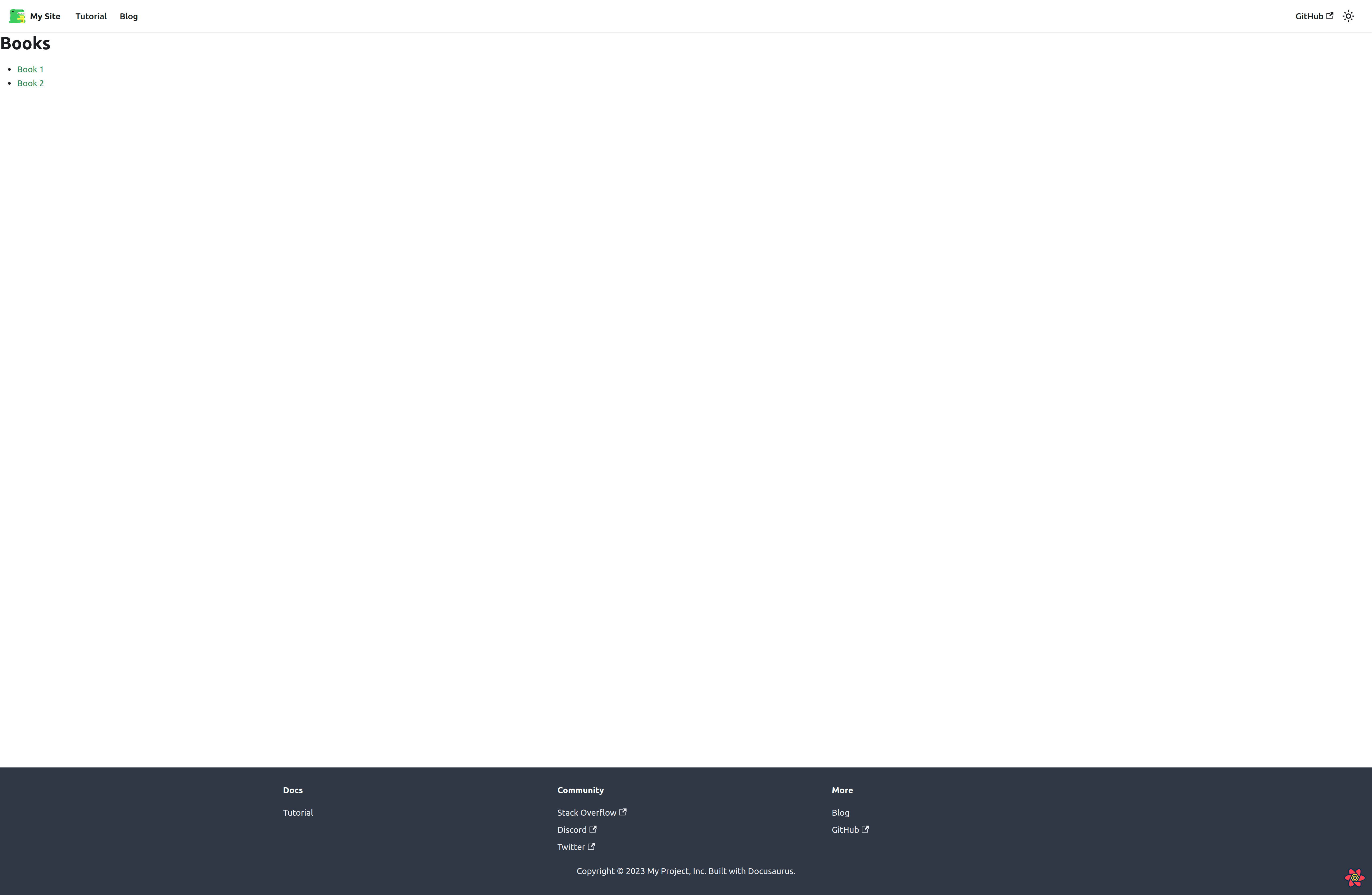
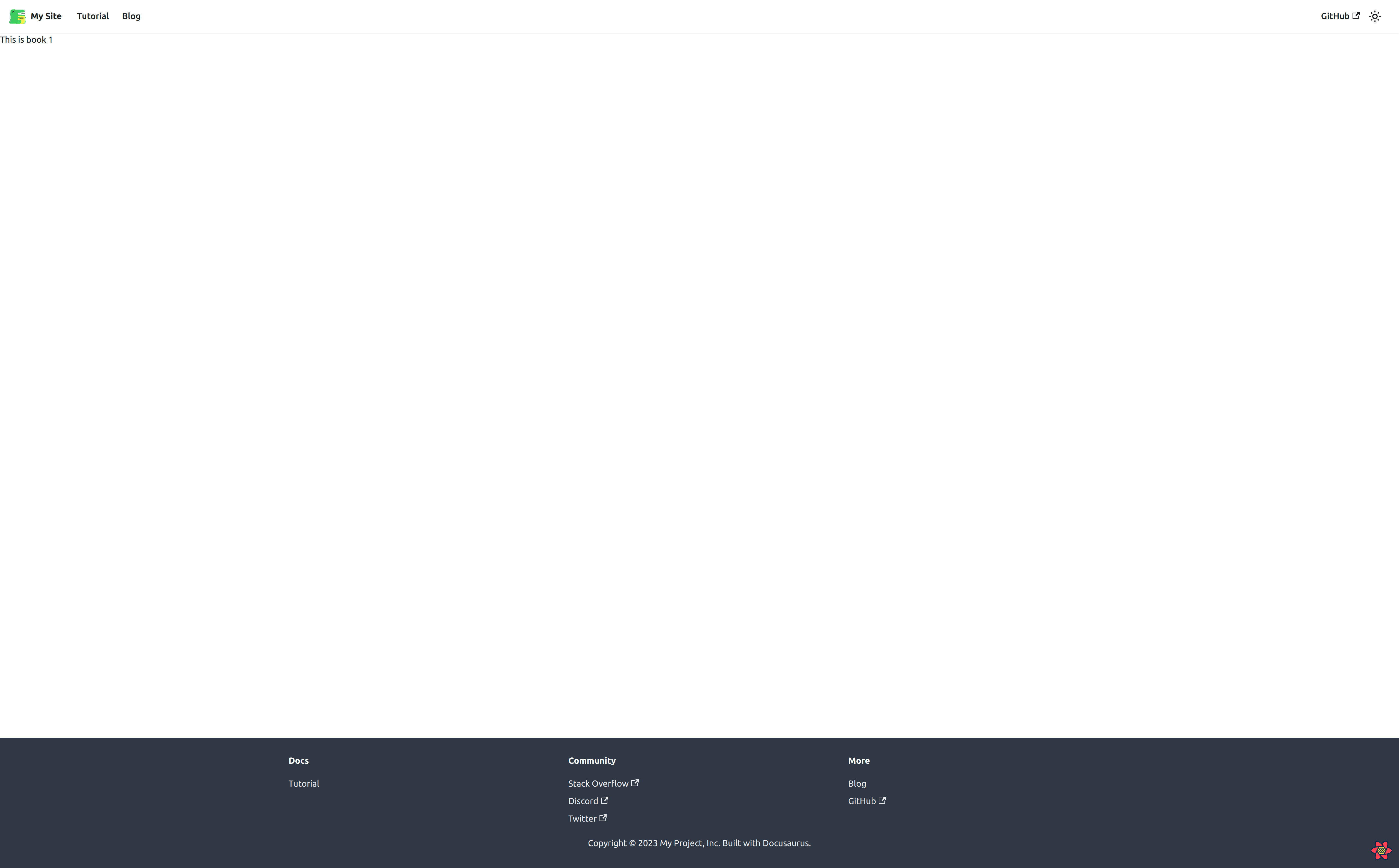
With these steps, we will build a dynamic route to view books. The route will be /books/:bookId. Our final result will look like this:

books

Install react-router-dom

By default, Docusaurus exports only useHistory, useLocation, Redirect, and matchPath from react-router-dom. To use Route and Switch, you need to install react-router-dom manually:

pnpm add react-router-dom@5.3.4
caution

react-router-dom v6 is not mentioned to be compatible with Docusaurus v2 yet. So, please use react-router-dom v5 instead.

Create a Docusaurus Plugin

Docusaurus has an action addRoute from contentLoaded plugin method to add your route to the website. But instead of using this action to add a single route, we can create our custom plugin to add multiple routes:

src/plugins/plugin-dynamic-route/index.js
module.exports = function dynamicRoutePlugin(context, options) {
return {
name: 'plugin-dynamic-route',
contentLoaded({ actions }) {
const { routes } = options;
const { addRoute } = actions;

routes.forEach((route) => addRoute(route));
},
};
};

Then we can add this plugin to docusaurus.config.js:

docusaurus.config.js
const config = {
plugins: [
[
'./src/plugins/plugin-dynamic-route/index.js',
{
routes: [
{
// using Route schema from react-router
path: '/books',
exact: false, // this is needed for sub-routes to match!
component: '@site/src/components/layouts/BookLayout/index',
},
],
},
],
],
};

We will create the BookLayout component in the next step.

Render Book page

info

Because this is a custom route and we don't want Docusaurus to render it, we have to add an underscore (_) to the beginning of the file name. This is a convention in Docusaurus to tell Docusaurus to ignore this file and do not create a route for it.

First, we will create an index page to list all books:

src/pages/_books/index.tsx
import React from 'react';

const BookPage = () => {
return (
<div>
<h1>Books</h1>
<ul>
<li>
<a href="/books/1">Book 1</a>
</li>
<li>
<a href="/books/2">Book 2</a>
</li>
</ul>
</div>
);
};

export { BookPage };
note

Although it's not mandatory to create dynamic routes within src/pages, it's a good convention to follow. This way, you can easily find all dynamic routes in one place.

Then create a page for the individual book:

src/pages/_books/[bookId].tsx
import React from 'react';
import { useRouteMatch } from 'react-router-dom';

const BookDetail = () => {
const match = useRouteMatch();
const { bookId } = match.params;
return <div>This is book {bookId}</div>;
};

export { BookDetail };
note

Once again, naming your file with brackets ([]) is not mandatory, you can name it anything you want. This paradigm is used in Next.js and it's a good convention.

Furthermore, Docusaurus follows this convention in src/pages folder too.

Finally, create a layout component to handle the routing for book pages:

  • Wrap the content with the Layout component from Docusaurus.
  • Use Switch and Route from react-router-dom to render the correct page based on the route.
  • Use the NotFound component from Docusaurus to render a 404 page if the route is not found.
src/components/layouts/BookLayout/index.tsx
import Layout from '@theme/Layout';
import NotFound from '@theme/NotFound';
import React from 'react';
import { Route, Switch, useRouteMatch } from 'react-router-dom';
import { BookDetail } from '@site/src/pages/_books/[bookId]';
import { BookPage } from '@site/src/pages/_books/index';

function BookLayout() {
const match = useRouteMatch();

return (
<Switch>
<Route exact path={`${match.path}/:bookId`}>
<Layout title="Book detail">
<BookDetail />
</Layout>
</Route>

<Route exact path={match.path}>
<Layout title="Book list">
<BookPage />
</Layout>
</Route>

<Route>
<NotFound />
</Route>
</Switch>
);
}

export default BookLayout;

Result

  • /books: Render a list of books

    books

  • /books/1: Render book detail

    book-1

· 8 min read

Docusaurus allows you to add many types of navbar items to the navbar. But if you want to add a custom navbar item, you have to register a new type for your component. This guide will show you how to create a custom navbar item for Docusaurus.

Getting Started

info

This is an implementation of a temporary workaround to support custom navbar item types, from #7231 and #7227 issues.

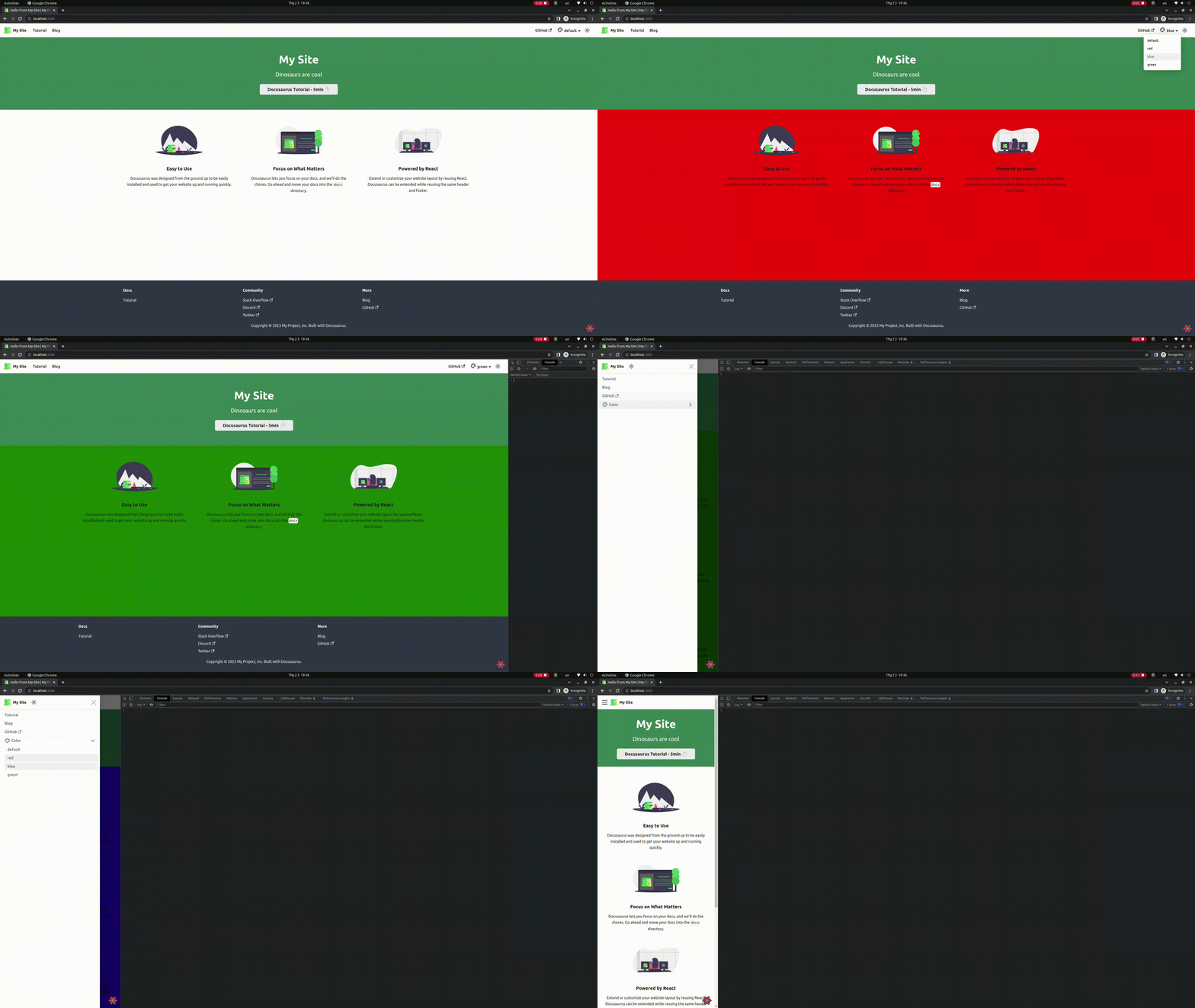
We will create a dropdown navbar item that contains a list of colors. When we select a color, the background color of the website will change to the selected one.

There are two types of navbar items we have to register:

  • custom-colorPickerDropdown: This is the dropdown navbar item that contains a list of colors.
  • custom-colorPicker: This is the navbar item that contains the color that we selected.
note

The custom- prefix is required for custom navbar item types.

These types will be registered by extending the Docusaurus default NavbarItem/ComponentTypes exported object.

Our final result will look like this:

demo

Types

Create a types.ts file to store the types of our custom navbar items:

  • type and label are the required properties of a navbar item.
  • color is the color that we selected.
src/components/elements/BgColorPicker/types.ts
export type ColorConfig = {
type?: string;
label?: string;
color?: 'red' | 'blue' | 'green' | 'default';
};

If an item is not provided with a label property, it will render an empty <div> element, which kind of looks weird.

Create a provider to share the color state

tip

You can use your own state management library (e.g. Redux Toolkit, Zustand, etc.) to manage the color state. But in this example, we will use React Context to manage the color state for simplicity.

When we shrink down the screen size to mobile size, the navbar will only hided with display: none. So the dropdown navbar item still exists and a new navbar is created as a sidebar. This means that the color state won't be synced between the two navbar items. To solve this problem, we have to create a provider to share the color state between the navbar and the sidebar (mobile).

  • Create a context:

    src/components/elements/BgColorPicker/colorContext.tsx
    import { createContext } from 'react';
    import { ColorConfig } from './types';

    type ColorContextType = {
    color: Omit<ColorConfig, 'type'>;
    setColor: React.Dispatch<React.SetStateAction<Omit<ColorConfig, 'type'>>>;
    };

    export const ColorContext = createContext<ColorContextType>(null);

    Hm, why do we use Omit<ColorConfig, 'type'> instead of ColorConfig? Because the ColorPickerNavbarItem component wasn't provided with a type property, only label and color are provided. So we have to omit the type property to keep the type consistent.

  • Then create a provider:

    src/components/elements/BgColorPicker/ColorPickerProvider.tsx
    import type { ThemeConfig } from '@docusaurus/preset-classic';
    import useDocusaurusContext from '@docusaurus/useDocusaurusContext';
    import React, { useEffect, useState } from 'react';
    import { ColorContext } from '@site/src/components/elements/BgColorPicker/colorContext';
    import type { ColorConfig } from '@site/src/components/elements/BgColorPicker/types';

    const ColorPickerProvider = ({
    children,
    }: {
    children?: React.ReactNode;
    }) => {
    const { siteConfig } = useDocusaurusContext();

    const navbarItems = (siteConfig.themeConfig as ThemeConfig).navbar.items;

    const defaultColor: ColorConfig = navbarItems.find((item) => {
    return item.type === 'custom-colorPickerDropdown';
    }).items[0];

    const [color, setColor] = useState<Omit<ColorConfig, 'type'>>({
    label: defaultColor.label,
    color: defaultColor.color,
    });

    // eslint-disable-next-line consistent-return
    useEffect(() => {
    if (color?.color && color.color !== 'default') {
    document.documentElement.style.setProperty(
    '--ifm-background-color',
    color.color,
    );
    }

    return () => {
    document.documentElement.style.setProperty(
    '--ifm-background-color',
    '#0000',
    );
    };
    }, [color]);

    return (
    <ColorContext.Provider
    value={{
    color,
    setColor,
    }}
    >
    {children}
    </ColorContext.Provider>
    );
    };

    export { ColorPickerProvider };
    • We use the useDocusaurusContext hook to get the siteConfig object that has the navbar items we defined in docusaurus.config.js.

    • Extract the first entry of the items property of the custom-colorPickerDropdown navbar item. This is the default color that we will use when the user visits the website for the first time.

      tip

      It's recommended that you set default as the first color in the items property. So it won't affect the background color of the website when the user visits the website for the first time.

    • We use the useEffect hook to set the --ifm-background-color CSS variable to the selected color. We also set the --ifm-background-color CSS variable to #0000 (default value from Docusaurus) when the component is unmounted.

    • Finally, we pass the color and setColor to the ColorContext so that the ColorPickerNavbarItem can access it.

  • Finally, wrap the Root theme component with the provider:

    src/theme/Root.tsx
    import React from 'react';
    import { ColorPickerProvider } from '@site/src/context/ColorPickerProvider';

    // Default implementation, that you can customize
    export default function Root({ children }: { children?: React.ReactNode }) {
    return <ColorPickerProvider>{children}</ColorPickerProvider>;
    }
    caution

    You should aware that the Root component is not mentioned whether it is Safe or Unsafe by running the command pnpm swizzle.

Create a dropdown navbar item component

Create a wrapper component for the default DropdownNavbarItem component:

src/components/elements/BgColorPicker/DropdownNavbarItem.tsx
import { Icon } from '@iconify/react';
import type { Props } from '@theme/NavbarItem/DropdownNavbarItem';
import DropdownNavbarItem from '@theme/NavbarItem/DropdownNavbarItem';
import React, { useContext } from 'react';
import { ColorContext } from './colorContext';
import type { ColorConfig } from './types';

const ColorPickerDropdownNavbarItem = ({
mobile = false,
...props
}: {
items: ColorConfig[];
} & Props) => {
const context = useContext(ColorContext);

// Ref: https://github.com/facebook/docusaurus/blob/main/packages/docusaurus-theme-classic/src/theme/NavbarItem/LocaleDropdownNavbarItem/styles.module.css
const navbarLabel = (
<>
<Icon
className="mr-5px align-text-bottom"
icon="ic:outline-palette"
width={24}
/>
{mobile ? props.label : context?.color?.label}
</>
);

return <DropdownNavbarItem mobile={mobile} {...props} label={navbarLabel} />;
};

export { ColorPickerDropdownNavbarItem };
  • First, we have to intersect the Props type of the default DropdownNavbarItem with of our custom items property. This is because the default DropdownNavbarItem items property is of type LinkLikeNavbarItemProps[]. The items prop has value of the items property of the custom-colorPickerDropdown navbar item, defined in the docusaurus.config.js file.

  • We can create a custom label with icon, like the LocaleDropdownNavbarItem component. We use the context to get the selected color label. On the desktop, it displays the selected color label. On mobile, it displays the label prop of the custom-colorPickerDropdown navbar item.

Create a navbar item component

Create the ColorPickerNavbarItem component:

src/components/elements/BgColorPicker/NavbarItem.tsx
import type { Props } from '@theme/NavbarItem/DefaultNavbarItem';
import clsx from 'clsx';
import React, { ComponentProps, useContext } from 'react';
import { ColorContext } from './colorContext';
import type { ColorConfig } from './types';

type ColorPickerNavbarItemProps = Omit<Props, keyof ComponentProps<'a'>> &
ComponentProps<'div'>;

const DefaultColorPickerNavbarItem = ({
label,
className,
isDropdownItem = false,
activeClassName,
isLinkActive,
mobile,
...props
}: {
isLinkActive: boolean;
} & ColorPickerNavbarItemProps) => {
const element = (
<div
className={clsx(
isDropdownItem && (mobile ? 'menu__link' : 'dropdown__link'),
className,
isLinkActive && activeClassName,
)}
{...props}
>
{label}
</div>
);

if (isDropdownItem) {
return <li className={clsx(mobile && 'menu__list-item')}>{element}</li>;
}

return element;
};

const ColorPickerNavbarItem = ({
label,
color,
mobile,
...props
}: Omit<ColorConfig, 'type'> & ColorPickerNavbarItemProps) => {
const context = useContext(ColorContext);

const handleClick = () => {
context?.setColor({ label, color });
};

return (
<DefaultColorPickerNavbarItem
{...props}
activeClassName={
props.activeClassName ??
(mobile ? 'menu__link--active' : 'dropdown__link--active')
}
isLinkActive={context?.color?.color === color}
label={label}
mobile={mobile}
onClick={handleClick}
/>
);
};

export { ColorPickerNavbarItem };
  • First, because we render a <div> element instead of an <a> element, we have to omit the Props type of the default DefaultNavbarItem that contains the a element props.

    note

    Although the type ColorPickerNavbarItemProps still has the RRNavLinkProps, which is react-router-dom's props and others, that are not used in the component, we don't care much about it.

  • This component is rewritten from the default DefaultNavbarItem component, which merge both DefaultNavbarItemDesktop and DefaultNavbarItemMobile into a single component.

Export navbar item components

Export the ColorPickerDropdownNavbarItem and ColorPickerNavbarItem components:

src/components/elements/BgColorPicker/index.ts
export * from './DropdownNavbarItem';
export * from './NavbarItem';

Register custom navbar items

We will register the custom navbar items in the NavbarItem/ComponentTypes file:

src/theme/NavbarItem/ComponentTypes.tsx
import ComponentTypes from '@theme-original/NavbarItem/ComponentTypes';
import {
ColorPickerDropdownNavbarItem,
ColorPickerNavbarItem,
} from '@site/src/components/elements/BgColorPicker';

export default {
...ComponentTypes,
'custom-colorPickerDropdown': ColorPickerDropdownNavbarItem,
'custom-colorPicker': ColorPickerNavbarItem,
};
note

Once again, the custom- prefix is required when registering custom navbar items. From slorber's suggestion.

Add navbar item to navbar

Add the custom navbar items to the navbar in the file dousaurus.config.js:

docusaurus.config.js
const config = {
themeConfig: {
navbar: {
items: [
{
type: 'custom-colorPickerDropdown',
position: 'right',
label: 'Color',
items: [
{
type: 'custom-colorPicker',
label: 'default',
color: 'default',
},
{
type: 'custom-colorPicker',
label: 'red',
color: 'red',
},
{
type: 'custom-colorPicker',
label: 'blue',
color: 'blue',
},
{
type: 'custom-colorPicker',
label: 'green',
color: 'green',
},
],
},
],
},
},
};

And voila! We have a working color picker in the navbar.

· 15 min read

Docusaurus is an excellent tool for building documentation websites. However, it does not support WindiCSS out of the box. Mantine is a React UI library that provides a lot of UI components and hooks, so you can use them to build your components.

This guide will show you how to integrate WindiCSS and Mantine with Docusaurus.

Getting Started

We will go through setting up these features:

  • ✅ WindiCSS
  • ✅ Mantine
    • ✅ Dark mode
    • ✅ Typography
    • ✅ Colors

Currently, there are some bugs with WindiCSS Devtool in windicss-webpack-plugin package, which are reported in #118 and #115.

Setup Docusaurus

First, we need to set up a Docusaurus project. You can follow the official guide from Docusaurus website:

pnpm create docusaurus demo-docs classic

Then, we have this project structure:

.
├── babel.config.js
├── blog
├── docs
├── docusaurus.config.js
├── node_modules
├── package.json
├── pnpm-lock.yaml
├── README.md
├── sidebars.js
├── src
│ ├── components
│ ├── css
│ └── pages
└── static
└── img

Setup WindiCSS

Install dependencies

We will have to install windicss and windicss-webpack-plugin package:

pnpm add -D windicss windicss-webpack-plugin

Configure Webpack

Following the official guide from WindiCSS, we have to configure Webpack to use the windicss-webpack-plugin.

Because the file webpack.config.ts somehow is not loaded by Docusaurus, we have to configure Webpack manually in the file docusaurus.config.js by creating a custom Docusaurus plugin:

docusaurus.config.js
const WindiCSSWebpackPlugin = require('windicss-webpack-plugin');

/** @type {import('@docusaurus/types').Config} */
const config = {
plugins: [
function windicssPlugin() {
return {
name: 'windicss-plugin',
configureWebpack() {
return {
plugins: [new WindiCSSWebpackPlugin()],
};
},
};
},
],
};

module.exports = config;

Include the virtual module

It's recommended to include the WindiCSS virtual module within an entry point file or something only loaded once.

However, Docusaurus does not have an entry file like index.js or index.ts, so we have to "swizzle" the Root component by creating a wrapper around it to import the module.

The <Root> component is rendered at the very top of the React tree, above the theme <Layout>, and never unmounts. It is the perfect place to add stateful logic that should not be re-initialized across navigations (user authentication status, shopping card state...).

caution

You should aware that the Root component is not mentioned whether it is Safe or Unsafe by running the command pnpm swizzle.

Import all three layers:

src/theme/Root.tsx
import React from 'react';
import 'windi.css';

// Default implementation, that you can customize
export default function Root({ children }: { children?: React.ReactNode }) {
return <>{children}</>;
}

Because the file windi-base.css overrides the default styles of Docusaurus, so I recommend not importing it:

src/theme/Root.tsx
import React from 'react';
-import 'windi.css';
+import 'windi-components.css';
+import 'windi-utilities.css';

// Default implementation, that you can customize
export default function Root({ children }: { children?: React.ReactNode }) {
return <>{children}</>;
}

Test Locally

Now, we can test the result by writing some classes in HomepageHeader the component in the file src/pages/index.tsx:

src/pages/index.tsx
// ...
function HomepageHeader() {
const { siteConfig } = useDocusaurusContext();
return (
<header className="bg-blue-500">
<div className="container mx-auto text-center py-24">
<h1 className="text-4xl font-bold text-white">{siteConfig.title}</h1>
<p className="text-xl py-6 text-white">{siteConfig.tagline}</p>

<div className="py-10">
<Link
className="bg-white rounded-md text-gray-500 px-4 py-2"
to="/docs/intro"
>
Docusaurus Tutorial - 5min ⏱️
</Link>
</div>
</div>
</header>
);
}
// ...

And we can see the result:

demo

Configure WindiCSS

You can configure WindiCSS by creating a file windi.config.ts in the root directory.

Dark Mode

Windi CSS has out-of-box Dark Mode support.

By prefixing the dark: variant to utilities, they will only apply when dark mode is enabled.

We have two modes for enabling dark mode, class mode and media query mode. By default, class mode is enabled.

Enable dark mode using class mode:

windi.config.ts
export default {
darkMode: 'class',
};

To manually add class dark to the <html> element, we can add some logic in the Layout/Provider wrapper:

  • Add or remove the class dark based on the color scheme.
src/theme/Layout/Provider/index.tsx
// eslint-disable-next-line import/no-extraneous-dependencies
import { useColorMode } from '@docusaurus/theme-common';
import { ColorSchemeProvider } from '@mantine/core';
import Provider from '@theme-original/Layout/Provider';
import React, { useEffect } from 'react';
import { MantineProvider } from '@site/src/context/MantineProvider';

const CustomProvider = ({ children }: { children?: React.ReactNode }) => {
const { colorMode, setColorMode } = useColorMode();

useEffect(() => {
if (colorMode === 'dark') {
document.documentElement.classList.add('dark');
} else if (colorMode === 'light') {
document.documentElement.classList.remove('dark');
}
}, [colorMode]);

return <>{children}</>;
};

export default function ProviderWrapper({
children,
...props
}: {
children?: React.ReactNode;
}) {
return (
<Provider {...props}>
<CustomProvider>{children}</CustomProvider>
</Provider>
);
}
caution

The useColorMode hook MUST be called inside the ProviderWrapper component. That's why I have to create a separate component CustomProvider to wrap the useColorMode hook.

Another approach by swizzling the ColorModeToggle component

This approach is considered simpler than the previous one because the color mode is already passed to the ColorModeToggle component.

The ColorModeToggle component is Safe to swizzle:

src/theme/ColorModeToggle.tsx
import ColorModeToggle from '@theme-original/ColorModeToggle';
import type { Props } from '@theme/ColorModeToggle';
import React, { useEffect } from 'react';

export default function ColorModeToggleWrapper(props: Props) {
const { value: colorMode } = props;

useEffect(() => {
if (colorMode === 'dark') {
document.documentElement.classList.add('dark');
} else if (colorMode === 'light') {
document.documentElement.classList.remove('dark');
}
}, [colorMode]);

return (
<>
<ColorModeToggle {...props} />
</>
);
}
caution

This approach only works when the color mode switch is enabled. If you disable the button by setting themeConfig.colorMode.disableSwitch to true in the file docusaurus.config.js, the ColorModeToggle component will not be rendered.

Why don't we use hook useColorMode?

Yes, you can, but the color mode is already passed to the component as a prop, we can use it directly.

note

Error: "Hook useColorMode is called outside the <ColorModeProvider>"

If you have this error and you are using pnpm, then you may have hoisting package issue (#7880 and #6724). You can fix it by adding the following code to the file .npmrc:

.npmrc
public-hoist-pattern[]=@docusaurus/theme-common*

Typography

WindiCSS font family utilities (font-sans, font-serif, font-mono) configured fonts are quite different from the ones configured in Docusaurus. So we can configure the fonts in windi.config.ts to match with Docusaurus configurations:

  • Font family base from variable --ifm-font-family-base.
  • Font family mono from variable --ifm-font-family-monospace.
  • Font family serif is not present in Docusaurus, so we can use the default value.
windi.config.ts
export default {
theme: {
extend: {
fontFamily: {
sans: 'system-ui,-apple-system,Segoe UI,Roboto,Ubuntu,Cantarell,Noto Sans,sans-serif,BlinkMacSystemFont,"Segoe UI",Helvetica,Arial,sans-serif,"Apple Color Emoji","Segoe UI Emoji","Segoe UI Symbol"',
mono: 'SFMono-Regular,Menlo,Monaco,Consolas,"Liberation Mono","Courier New",monospace',
},
},
},
};

Animations

info

This section is optional. WindiCSS has built-in animations support since v3.1.

To add quick animations to your site, you can use WindiCSS's animation default utilities, but it's quite limited. So we can install the plugin @windicss/plugin-animations to add more animations utilities from Animate CSS

Install the plugin:

pnpm add -D @windicss/plugin-animations

Add the plugin to windi.config.ts:

windi.config.ts
import pluginAnimations from '@windicss/plugin-animations';

export default {
plugins: [
// Other plugins
pluginAnimations({
settings: {
// animatedSpeed: 1000,
},
}),
],
};

Then you can use the animation utilities:

src/pages/index.tsx
// ...
function HomepageHeader() {
return (
<p className="animate-animated animate-infinite animate-rubberBand">
Hello World
</p>
);
}
// ...

Attributify Mode

To configure the attributify mode, we can configure it in windi.config.ts:

windi.config.ts
export default {
attributify: true,
};

Then you can use the WindiCSS utilities as HTML attributes:

src/pages/index.tsx
// ...
function HomepageHeader() {
return (
<button
bg="blue-400 hover:blue-500 dark:blue-500 dark:hover:blue-600"
text="sm white"
font="mono light"
p="y-2 x-4"
border="2 rounded blue-200"
>
Button
</button>
);
}
// ...
caution

Since Mantine also provides some default props for all components, like: p, px, py, m, mx, my,... so if you use the attributify mode, you should add a prefix to the WindiCSS utilities to avoid conflicts. For example, you can setup the prefix w: for WindiCSS utilities:

windi.config.ts
export default {
attributify: {
prefix: 'w:',
},
};

Then you can use the WindiCSS utilities as HTML attributes:

src/pages/index.tsx
// ...
function HomepageHeader() {
return (
<button
w:bg="blue-400 hover:blue-500 dark:blue-500 dark:hover:blue-600"
w:text="sm white"
w:font="mono light"
w:p="y-2 x-4"
w:border="2 rounded blue-200"
>
Button
</button>
);
}
// ...

Colors

Docusaurus configured primary colors from src/css/custom.css:

src/css/custom.css
:root {
--ifm-color-primary: #2e8555;
--ifm-color-primary-dark: #29784c;
--ifm-color-primary-darker: #277148;
--ifm-color-primary-darkest: #205d3b;
--ifm-color-primary-light: #33925d;
--ifm-color-primary-lighter: #359962;
--ifm-color-primary-lightest: #3cad6e;
--ifm-code-font-size: 95%;
--docusaurus-highlighted-code-line-bg: rgba(0, 0, 0, 0.1);
}

/* For readability concerns, you should choose a lighter palette in dark mode. */
[data-theme='dark'] {
--ifm-color-primary: #25c2a0;
--ifm-color-primary-dark: #21af90;
--ifm-color-primary-darker: #1fa588;
--ifm-color-primary-darkest: #1a8870;
--ifm-color-primary-light: #29d5b0;
--ifm-color-primary-lighter: #32d8b4;
--ifm-color-primary-lightest: #4fddbf;
--docusaurus-highlighted-code-line-bg: rgba(0, 0, 0, 0.3);
}

We can configure WindiCSS to use these in class as well:

windi.config.ts
export default {
theme: {
extend: {
colors: {
primary: {
DEFAULT: '#2e8555',
dark: '#29784c',
darker: '#277148',
darkest: '#205d3b',
light: '#33925d',
lighter: '#359962',
lightest: '#3cad6e',
},
'dark-primary': {
DEFAULT: '#25c2a0',
dark: '#21af90',
darker: '#1fa588',
darkest: '#1a8870',
light: '#29d5b0',
lighter: '#32d8b4',
lightest: '#4fddbf',
},
},
},
},
};

Then you can use Docusaurus primary colors in class:

src/pages/index.tsx
// ...
function HomepageHeader() {
return (
<p className="bg-primary hover:bg-primary-dark dark:bg-dark-primary dark:hover:bg-dark-primary-dark">
Hello World
</p>
);
}
// ...

Setup Mantine

Install dependencies

pnpm add @mantine/core @mantine/hooks @emotion/react

Configure Mantine Provider

In this step, we will add Mantine Provider to the <Root> to ensure that all Mantine components are using the same theme.

src/theme/Root.tsx
+import { MantineProvider } from '@mantine/core';
import React from 'react';
// eslint-disable-next-line import/no-unresolved
import 'windi-components.css';
// eslint-disable-next-line import/no-unresolved
import 'windi-utilities.css';

// Default implementation, that you can customize
export default function Root({ children }: { children?: React.ReactNode }) {
return (
- <>{children}</>
+ <MantineProvider>{children}</MantineProvider>
);
}
note

This is just a basic setup, we will use our custom <MantineProvider> in the next step.

Custom Mantine Provider

In this file, we will configure the Mantine Provider to use the WindiCSS theme (colors, fonts, breakpoints, etc) and Docusaurus theme (colors, fonts, etc), so we can ensure the consistency between the Docusaurus site, Mantine components, and WindiCSS utilities.

src/context/MantineProvider.tsx
import {
MantineProvider as BaseMantineProvider,
Global,
MantineTheme,
DEFAULT_THEME as mantineDefaultTheme,
} from '@mantine/core';
import type { MantineSizes } from '@mantine/core';
import React from 'react';
import windiDefaultColors from 'windicss/colors';
import windiDefaultTheme from 'windicss/defaultTheme';
import type { DefaultColors } from 'windicss/types/config/colors';
import type { DefaultFontSize, ThemeType } from 'windicss/types/interfaces';
import type { MantineThemeColors } from '@site/src/types/MantineThemeColors';

const convertBreakpoint = (breakpoint: ThemeType): MantineSizes => {
const convertedBreakpoint = {} as MantineSizes;
Object.keys(breakpoint).forEach((size) => {
// NOTE: Have to remove 'px' from breakpoint and convert to number
convertedBreakpoint[size] = +breakpoint[size].replace('px', '');
});
return convertedBreakpoint;
};

// Override Mantine colors
const convertColor = (windiColors: DefaultColors) => {
const convertedColor = {} as MantineThemeColors;
Object.keys(windiColors).forEach((color) => {
if (color === 'lightBlue') {
color = 'sky';
} else if (color === 'warmGray') {
color = 'stone';
} else if (color === 'trueGray') {
color = 'neutral';
} else if (color === 'coolGray') {
color = 'gray';
} else if (color === 'blueGray') {
color = 'slate';
} else if (color === 'zink') {
color = 'zinc';
}

if (windiColors[color] instanceof Object) {
convertedColor[color] = Object.values(windiColors[color]);
}
});
// NOTE: WindiCSS dark color is too dark
convertedColor.dark = convertedColor.zinc;

return convertedColor;
};

const convertFontSize = (fontSize: {
[key: string]: DefaultFontSize;
}): MantineSizes => {
const convertedFontSize = {} as MantineSizes;
Object.keys(fontSize).forEach((size) => {
// NOTE: Don't have to convert 'rem' to 'px'
convertedFontSize[size] = fontSize[size][0];
});
return convertedFontSize;
};

const theme: MantineTheme = {
...mantineDefaultTheme,
breakpoints: {
...mantineDefaultTheme.breakpoints,
...convertBreakpoint(windiDefaultTheme.screens), // WindiCSS
},
colors: {
...mantineDefaultTheme.colors,
...convertColor(windiDefaultColors),
},
defaultRadius: 'md',
black: windiDefaultColors.black as string,
white: windiDefaultColors.white as string,
primaryColor: 'blue',
fontSizes: {
...mantineDefaultTheme.fontSizes,
...convertFontSize(windiDefaultTheme.fontSize),
},
radius: {
...mantineDefaultTheme.radius,
// NOTE: WindiCSS border radius messed up with Mantine
// ...windiDefaultTheme.borderRadius,
},
fontFamily:
'system-ui,-apple-system,Segoe UI,Roboto,Ubuntu,Cantarell,Noto Sans,sans-serif,BlinkMacSystemFont,"Segoe UI",Helvetica,Arial,sans-serif,"Apple Color Emoji","Segoe UI Emoji","Segoe UI Symbol"',
fontFamilyMonospace:
'SFMono-Regular,Menlo,Monaco,Consolas,"Liberation Mono","Courier New",monospace',
headings: {
...mantineDefaultTheme.headings,
fontFamily:
'system-ui,-apple-system,Segoe UI,Roboto,Ubuntu,Cantarell,Noto Sans,sans-serif,BlinkMacSystemFont,"Segoe UI",Helvetica,Arial,sans-serif,"Apple Color Emoji","Segoe UI Emoji","Segoe UI Symbol"',
},
lineHeight: mantineDefaultTheme.lineHeight,
loader: 'oval',
shadows: {
...mantineDefaultTheme.shadows,
...windiDefaultTheme.boxShadow,
},
};

const MyGlobalStyles = () => {
return (
<Global
styles={{
'html.dark': {
img: {
filter: 'brightness(.8) contrast(1.2)',
},
},
}}
/>
);
};

type MantineProps = {
children: React.ReactNode;
theme?: Partial<MantineTheme>;
};

const MantineProvider = ({
children,
theme: themeProps,
...props
}: MantineProps) => {
return (
<BaseMantineProvider theme={{ ...theme, ...themeProps }} {...props}>
<MyGlobalStyles />
{children}
</BaseMantineProvider>
);
};

export { MantineProvider };

Use our custom <MantineProvider> in src/theme/Layout/Provider/index.tsx:

src/theme/Layout/Provider/index.tsx
import { useColorMode } from '@docusaurus/theme-common';
import Provider from '@theme-original/Layout/Provider';
import React, { useEffect } from 'react';
+import { MantineProvider } from '@site/src/context/MantineProvider';

const CustomProvider = ({ children }) => {
const { colorMode, setColorMode } = useColorMode();

useEffect(() => {
if (colorMode === 'dark') {
document.documentElement.classList.add('dark');
} else if (colorMode === 'light') {
document.documentElement.classList.remove('dark');
}
}, [colorMode]);

- return <>{children}</>;
+ return (
+ <MantineProvider>
+ {children}
+ </MantineProvider>
+ );
};

export default function ProviderWrapper({ children, ...props }) {
return (
<Provider {...props}>
<CustomProvider>{children}</CustomProvider>
</Provider>
);
}

Configure Mantine

Dark Mode

We will pass the color mode to Mantine using the ColorSchemeProvider component and theme.colorScheme props:

src/theme/Layout/Provider/index.tsx
import { useColorMode } from '@docusaurus/theme-common';
+import { ColorSchemeProvider } from '@mantine/core';
import Provider from '@theme-original/Layout/Provider';
import React, { useEffect } from 'react';
+import { MantineProvider } from '@site/src/context/MantineProvider';

const CustomProvider = ({ children }) => {
const { colorMode, setColorMode } = useColorMode();

useEffect(() => {
if (colorMode === 'dark') {
document.documentElement.classList.add('dark');
} else if (colorMode === 'light') {
document.documentElement.classList.remove('dark');
}
}, [colorMode]);

+ const toggleColorScheme = (value) =>
+ setColorMode(value || (colorMode === 'dark' ? 'light' : 'dark'));

- return (
- <MantineProvider>
- {children}
- </MantineProvider>
- );
+ return (
+ <ColorSchemeProvider
+ colorScheme={colorMode}
+ toggleColorScheme={toggleColorScheme}
+ >
+ <MantineProvider theme={{ colorScheme: colorMode }}>
+ {children}
+ </MantineProvider>
+ </ColorSchemeProvider>
+ );
};

export default function ProviderWrapper({ children, ...props }) {
return (
<Provider {...props}>
<CustomProvider>{children}</CustomProvider>
</Provider>
);
}

So now we can use the useMantineColorScheme (or useColorMode from Docusaurus) hook to get the color mode:

src/pages/index.tsx
// ...
import { Button, useMantineColorScheme } from '@mantine/core';

function HomepageHeader() {
const { siteConfig } = useDocusaurusContext();
const { colorScheme, toggleColorScheme } = useMantineColorScheme();
const dark = colorScheme === 'dark';
return (
<header className={clsx('hero hero--primary', styles.heroBanner)}>
<div className="container">
<h1 className="hero__title">{siteConfig.title}</h1>
<p className="hero__subtitle">{siteConfig.tagline}</p>
<div className={styles.buttons}>
<Link
className="button button--secondary button--lg"
to="/docs/intro"
>
Docusaurus Tutorial - 5min ⏱️
</Link>
</div>
<Button
variant="outline"
onClick={() => toggleColorScheme()}
title="Toggle color scheme"
>
{dark ? 'dark' : 'light'}
</Button>
</div>
</header>
);
}
// ...
caution

The useMantineColorScheme (or useColorMode) hook MUST be called inside the Layout component.

Typography

We will have to convert font sizes from WindiCSS types to Mantine types, apply font-family (from Docusaurus) and line-height:

For example:

WindiCSS sampleMantine sample
{
"xs": [
"0.75rem",
{
"lineHeight": "1rem"
}
]
}
{
"xs": "0.75rem"
}
src/context/MantineProvider.tsx
// ...
import {
MantineTheme,
DEFAULT_THEME as mantineDefaultTheme,
} from '@mantine/core';
import type { MantineSizes } from '@mantine/core';
import { DEFAULT_THEME as mantineDefaultTheme } from '@mantine/core';
import windiDefaultTheme from 'windicss/defaultTheme';
import type { DefaultFontSize } from 'windicss/types/interfaces';

const convertFontSize = (fontSize: {
[key: string]: DefaultFontSize;
}): MantineSizes => {
const convertedFontSize = {} as MantineSizes;
Object.keys(fontSize).forEach((size) => {
// NOTE: Don't have to convert 'rem' to 'px'
convertedFontSize[size] = fontSize[size][0];
});
return convertedFontSize;
};

const theme: MantineTheme = {
...mantineDefaultTheme,
fontSizes: {
...mantineDefaultTheme.fontSizes,
...convertFontSize(windiDefaultTheme.fontSize),
},
fontFamily:
'system-ui,-apple-system,Segoe UI,Roboto,Ubuntu,Cantarell,Noto Sans,sans-serif,BlinkMacSystemFont,"Segoe UI",Helvetica,Arial,sans-serif,"Apple Color Emoji","Segoe UI Emoji","Segoe UI Symbol"',
fontFamilyMonospace:
'SFMono-Regular,Menlo,Monaco,Consolas,"Liberation Mono","Courier New",monospace',
headings: {
...mantineDefaultTheme.headings,
fontFamily:
'system-ui,-apple-system,Segoe UI,Roboto,Ubuntu,Cantarell,Noto Sans,sans-serif,BlinkMacSystemFont,"Segoe UI",Helvetica,Arial,sans-serif,"Apple Color Emoji","Segoe UI Emoji","Segoe UI Symbol"',
},
lineHeight: mantineDefaultTheme.lineHeight,
};
// ...

Colors

At this step, we have to convert the WindiCSS color types to Mantine color types and remove unused colors.

note

We will use the default Mantine dark color, instead of WindiCSS dark color for better contrast. Moreover, we will set primaryShade to 7.

For example:

WindiCSS sampleMantine sample
{
"amber": {
"50": "#fffbeb",
"100": "#fef3c7",
"200": "#fde68a",
"300": "#fcd34d",
"400": "#fbbf24",
"500": "#f59e0b",
"600": "#d97706",
"700": "#b45309",
"800": "#92400e",
"900": "#78350f"
}
}
{
"amber": [
"#fffbeb",
"#fef3c7",
"#fde68a",
"#fcd34d",
"#fbbf24",
"#f59e0b",
"#d97706",
"#b45309",
"#92400e",
"#78350f"
]
}
src/context/MantineProvider.tsx
// ...
import {
MantineTheme,
DEFAULT_THEME as mantineDefaultTheme,
} from '@mantine/core';
import windiDefaultColors from 'windicss/colors';
import type { DefaultColors } from 'windicss/types/config/colors';
import type { MantineThemeColors } from '@site/src/types/MantineThemeColors';

// Override Mantine colors
const convertColor = (windiColors: DefaultColors) => {
const convertedColor = {} as MantineThemeColors;
Object.keys(windiColors).forEach((color) => {
if (color === 'lightBlue') {
color = 'sky';
} else if (color === 'warmGray') {
color = 'stone';
} else if (color === 'trueGray') {
color = 'neutral';
} else if (color === 'coolGray') {
color = 'gray';
} else if (color === 'blueGray') {
color = 'slate';
} else if (color === 'zink') {
color = 'zinc';
}

if (windiColors[color] instanceof Object) {
convertedColor[color] = Object.values(windiColors[color]);
}
});
// NOTE: WindiCSS dark color is too dark
convertedColor.dark = mantineDefaultTheme.colors.dark;

return convertedColor;
};

const theme: MantineTheme = {
...mantineDefaultTheme,
colors: {
...mantineDefaultTheme.colors,
...convertColor(windiDefaultColors),
},
black: windiDefaultColors.black as string,
white: windiDefaultColors.white as string,
primaryColor: 'blue',
primaryShade: 7,
};
// ...

· 16 min read

Writing markdowns is fun, and it's even better with Docusaurus because it's easy to use and has a lot of features that make your markdown more beautiful. But as a power user, you can extend the markdown syntax to make it more powerful with remark plugins.

Getting Started

In this guide, we will show you how to create a remark plugin for Docusaurus that transform Markdown URL (with patterns) links (e.g.: [hyperlink](some-url)) or URL plain texts to iframe elements.

Quick introduction to remark

remark is a markdown processor powered by plugins part of the unified collective. The project parses and compiles markdown, and lets programs process markdown without ever compiling to HTML (it can though). Powered by plugins to do all kinds of things: check markdown code style, add a table of contents, or compile to man pages.

View the project on GitHub or inspect the syntax tree on AST Explorer.

-- remark.js.org

Or you can read the Transforming Markdown with Remark & Rehype blog to learn more about both remark and rehype. Most of the content in this guide is inspired by it.

Moreover, you can use community plugins to extend the markdown syntax. For more information, see:

Plugin concept

Plugins configure the processors they are applied in the following ways:

  • they change the processor, such as the parser, the compiler, or by configuring data.
  • they specify how to handle trees and files.

Plugins are a concept. They materialize as Attachers.

Attachers are functions that take options and return a Transformer. Inside a Transformer, we can use the unist-util-visit to visit each node in the tree and transform it (change the node type, add attributes, or modify the node value).

Install dependencies

Install the following dependencies:

pnpm add unist-util-visit joi

Joi is for validating the options of the plugin, you can parse the options manually but Joi is more convenient.

Define options schema

src/remark/transformURL.js
const Joi = require('joi');

const optionSchema = Joi.object({
patterns: Joi.array().items(Joi.string(), Joi.object().regex()),
iframeAttrs: Joi.object().pattern(Joi.string(), [
Joi.number(),
Joi.string(),
Joi.boolean(),
]),
});

Our plugin will have two options:

  • patterns: an array of string or regex patterns to match the URL. If the URL matches one of the patterns, it will be transformed into an <iframe> element.

  • iframeAttrs: an object of attributes to add to the <iframe> element. The value can be a number, string, or boolean. boolean with true the value will be converted to the attribute name without value, e.g.: crossorigin: true will be converted to crossorigin attribute.

    note

    iframeAttrs object keys are not camelCase, as allowfullscreen: true will be passed as allowfullscreen.

Define the plugin

Just show the code first:

src/remark/transformURL.js
const Joi = require('joi');

const optionSchema = Joi.object({
patterns: Joi.array().items(Joi.string(), Joi.object().regex()),
iframeAttrs: Joi.object().pattern(Joi.string(), [
Joi.number(),
Joi.string(),
Joi.boolean(),
]),
});

// NOTE: Keep it simple because we only check for node type and url scheme
const nodeSchema = Joi.object({
type: Joi.string().valid('link', 'text'),
value: Joi.string().uri({
scheme: ['http', 'https'],
}),
url: Joi.string().uri({
scheme: ['http', 'https'],
}),
}).unknown();

function checkPatterns(url, patterns) {
return patterns.some((pattern) => {
const re = new RegExp(pattern);

return re.test(url);
});
}

function convertObjectToHTMLAttributes(obj) {
return Object.entries(obj)
.map(([key, val]) => {
if (typeof val === 'boolean' && val === true) {
return key;
}
return `${key}="${val}"`;
})
.join(' ');
}

function plugin(options = {}) {
Joi.assert(options, optionSchema);

const { patterns = [], iframeAttrs = {} } = options;

// NOTE: Create function inside the plugin to access options
async function transformer(tree) {
const { visit } = await import('unist-util-visit');

const test = (node) => {
const check = nodeSchema.validate(node);

return check.error === undefined;
};

visit(tree, test, (node, index, parent) => {
const url = node.value ? node.value : node.url;

if (!checkPatterns(url, patterns)) {
return;
}

const newAttrs = convertObjectToHTMLAttributes(iframeAttrs);

// NOTE: src should be the first attribute so it won't be overwritten
const newValue = `<iframe src="${url}" ${newAttrs}></iframe>`;

// We swap parent (usually "paragraph" node) with the new value if there
// is only one child as there is no others "text" node in the
// "paragraph" node
if (parent.children.length === 1) {
parent.type = 'html';
parent.value = newValue;
parent.children = [];
return;
}

// We only swap the 'link' node with the new value if node is not the
// only child
node.type = 'html';
node.value = newValue;
node.children = [];
delete node.url;
delete node.title;
});
}
return transformer;
}

module.exports = plugin;

Explanation

1. Validate the options

Joio.assert(options, optionSchema);

2. Extract the patterns and iframeAttrs from the options

We use [] and {} as default values because we want to make sure the value is valid.

const { patterns = [], iframeAttrs = {} } = options;

3. Create the transformer function

function plugin(options = {}) {
Joi.assert(options, optionSchema);

const { patterns = [], iframeAttrs = {} } = options;

// NOTE: Create function inside the plugin to access options
async function transformer(tree) {
const { visit } = await import('unist-util-visit');

const test = (node) => {
const check = nodeSchema.validate(node);

return check.error === undefined;
};

visit(tree, test, (node, index, parent) => {
const url = node.value ? node.value : node.url;

if (!checkPatterns(url, patterns)) {
return;
}

const newAttrs = convertObjectToHTMLAttributes(iframeAttrs);

// NOTE: src should be the first attribute so it won't be overwritten
const newValue = `<iframe src="${url}" ${newAttrs}></iframe>`;

// We swap parent (usually "paragraph" node) with the new value if there
// is only one child as there is no others "text" node in the
// "paragraph" node
if (parent.children.length === 1) {
parent.type = 'html';
parent.value = newValue;
parent.children = [];
return;
}

// We only swap the 'link' node with the new value if node is not the
// only child
node.type = 'html';
node.value = newValue;
node.children = [];
delete node.url;
delete node.title;
});
}
return transformer;
}
info

Hm, why do we use dynamic import to import unist-util-visit? unist-util-visit is a ESM only package, so we can't use require to import it. Then just use import? Because we going to import the plugin into the docusaurus.config.js file, and it's a CJS (CommonJS) module (not support ESM yet), so we can't mix ESM (ES Module) and CJS are in the same file.

caution

There is a known issue that the plugin will cause build error because the plugin uses "dynamic import" (import) to import the ES module unist-util-visit in the CJS module.

To fix this issue, you need to add sourceType: 'unambiguous', in the babel.config.js file (Ref):

// babel.config.js
module.exports = {
// ...
sourceType: 'unambiguous',
};
  • The visit behaves exactly like unist-util-visit-parents function as it receives:

    • a tree (Node): A very tree of nodes that we want to visit.
    • a test (Test, optional): A Test to check if a node should be visited.
    • a visitor (Visitor): A function to handle each node that is visited.
note

Then transformer function as the return value of the plugin function MUST be a async function.

4. About the test function

In this example, test is a function that checks if the node is a link or text node, and based on that we will check for the value or url property that has the http or https protocol.

This usually is a string (e.g.: 'link'), an array (e.g.: ['link', 'text']) an object (e.g.: { type: 'link'}), or a function that will be called with a node and should return true if the node should be visited.

For the sake of simplicity, you can pass an array ['link', 'text'] to the visit and then check later.

We put the test function inside the transformer function because we want to access the patterns from the options, then check it with the checkPatterns function:

function checkPatterns(url, patterns) {
return patterns.some((pattern) => {
const re = new RegExp(pattern);

return re.test(url);
});
}

5. About the visitor function

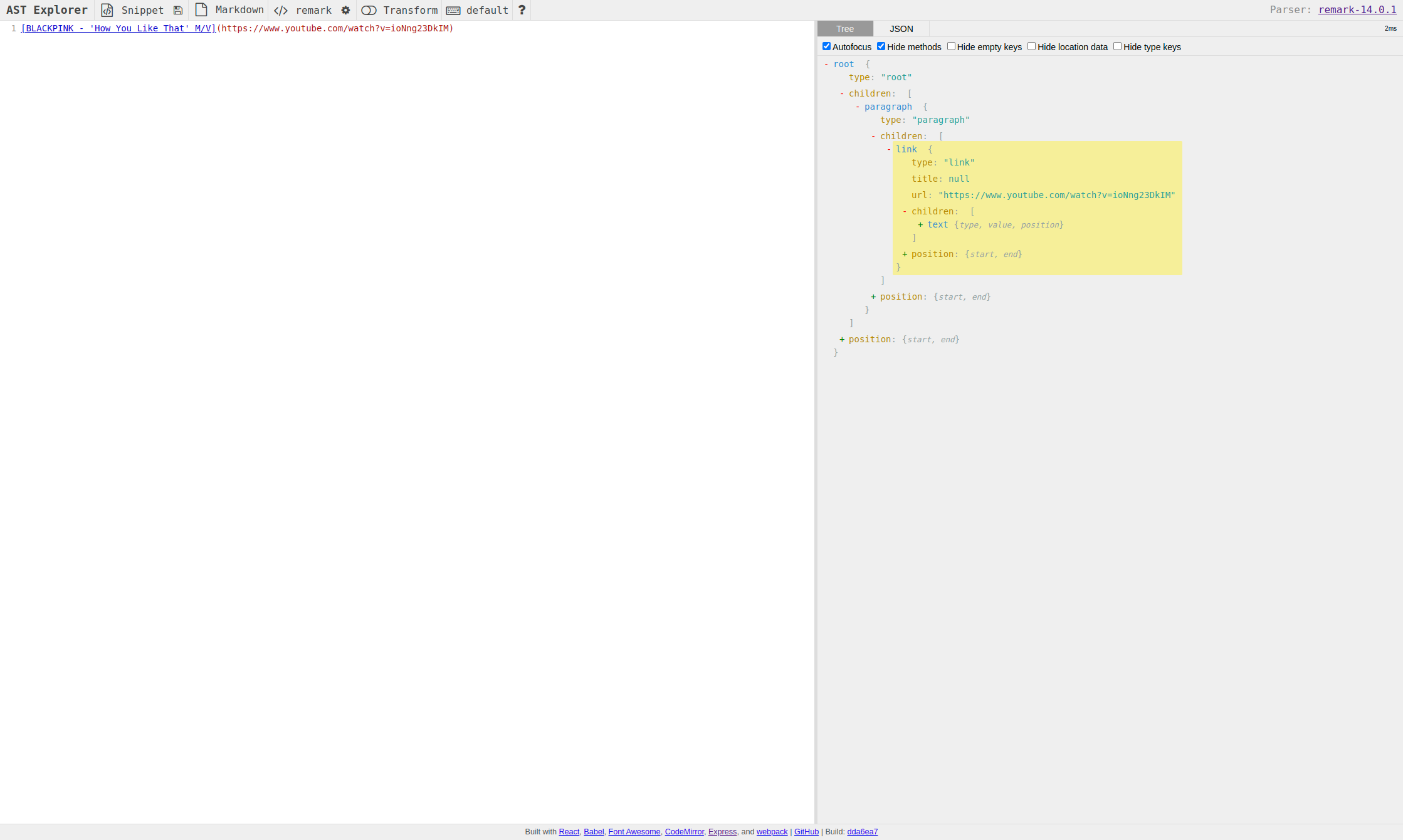
Inspect the properties of nodes:

tip

AST Explorer is a great tool to help you understand AST and how to use unist-util-visit function. You can try it out to modify the AST and see how it works.

  • link node structure:

    • Input:

      [BLACKPINK - 'How You Like That' M/V](https://www.youtube.com/watch?v=ioNng23DkIM)
    • Yields:

      {
      type: 'link',
      url: 'https://www.youtube.com/watch?v=ioNng23DkIM',
      title: null,
      children: [
      {
      type: 'text',
      value: "BLACKPINK - 'How You Like That' M/V",
      position: { start: [Object], end: [Object] }
      }
      ],
      position: { start: [Object], end: [Object] }
      }
    • Demo:

      link-node-demo

  • text node structure:

    • Input:

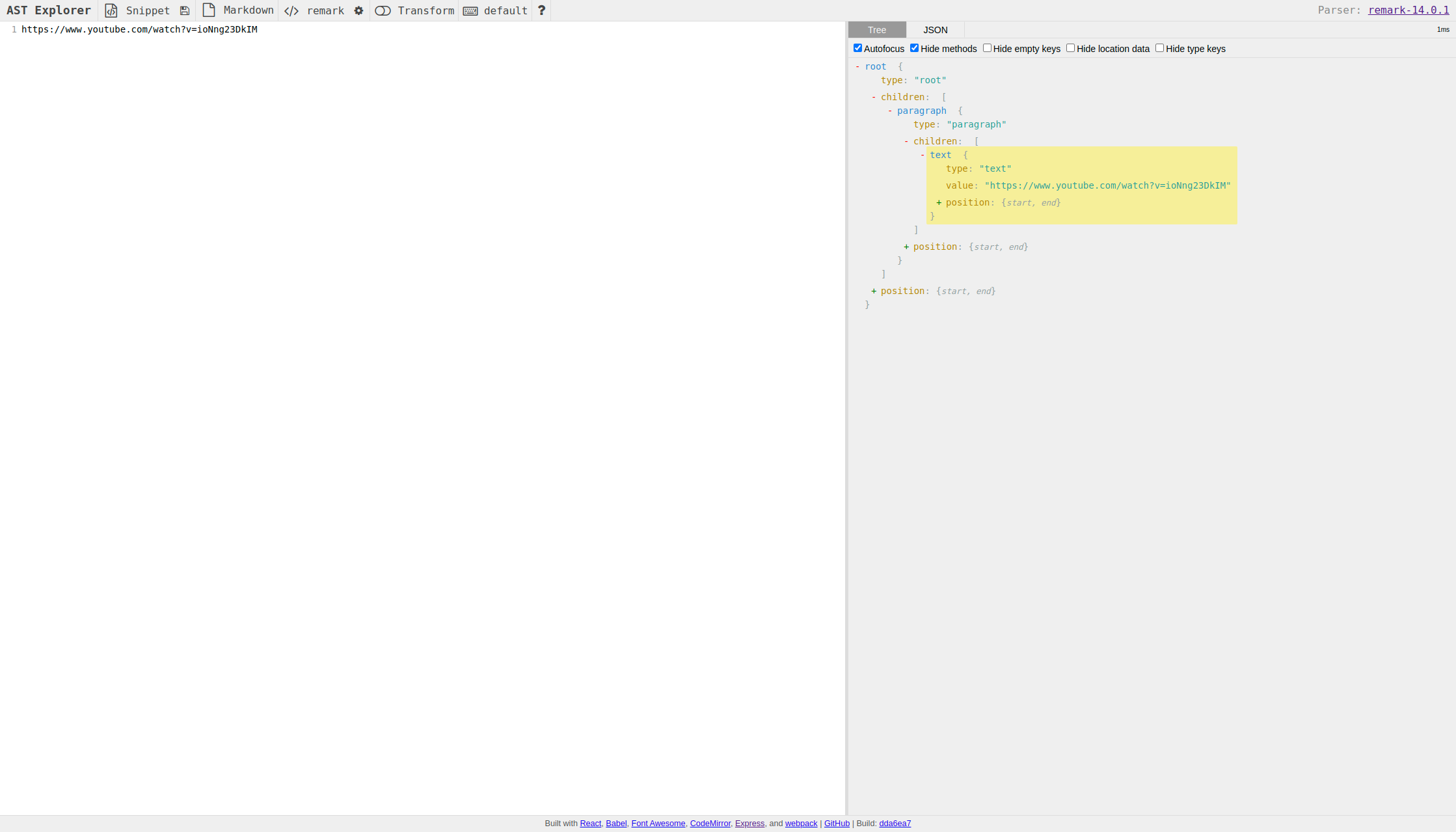
      https://www.youtube.com/watch?v=ioNng23DkIM
    • Yields:

      {
      type: 'text',
      value: 'https://www.youtube.com/watch?v=ioNng23DkIM',
      position: { start: [Object], end: [Object] }
      }
    • Demo:

      text-node-demo

info

Docusaurus will detect the text node that has URL protocol and convert it to a link node for us. We don't know how to override this behavior, even if put the plugin in the beforeDefaultRemarkPlugins option.

  • html node structure:

    • Input:

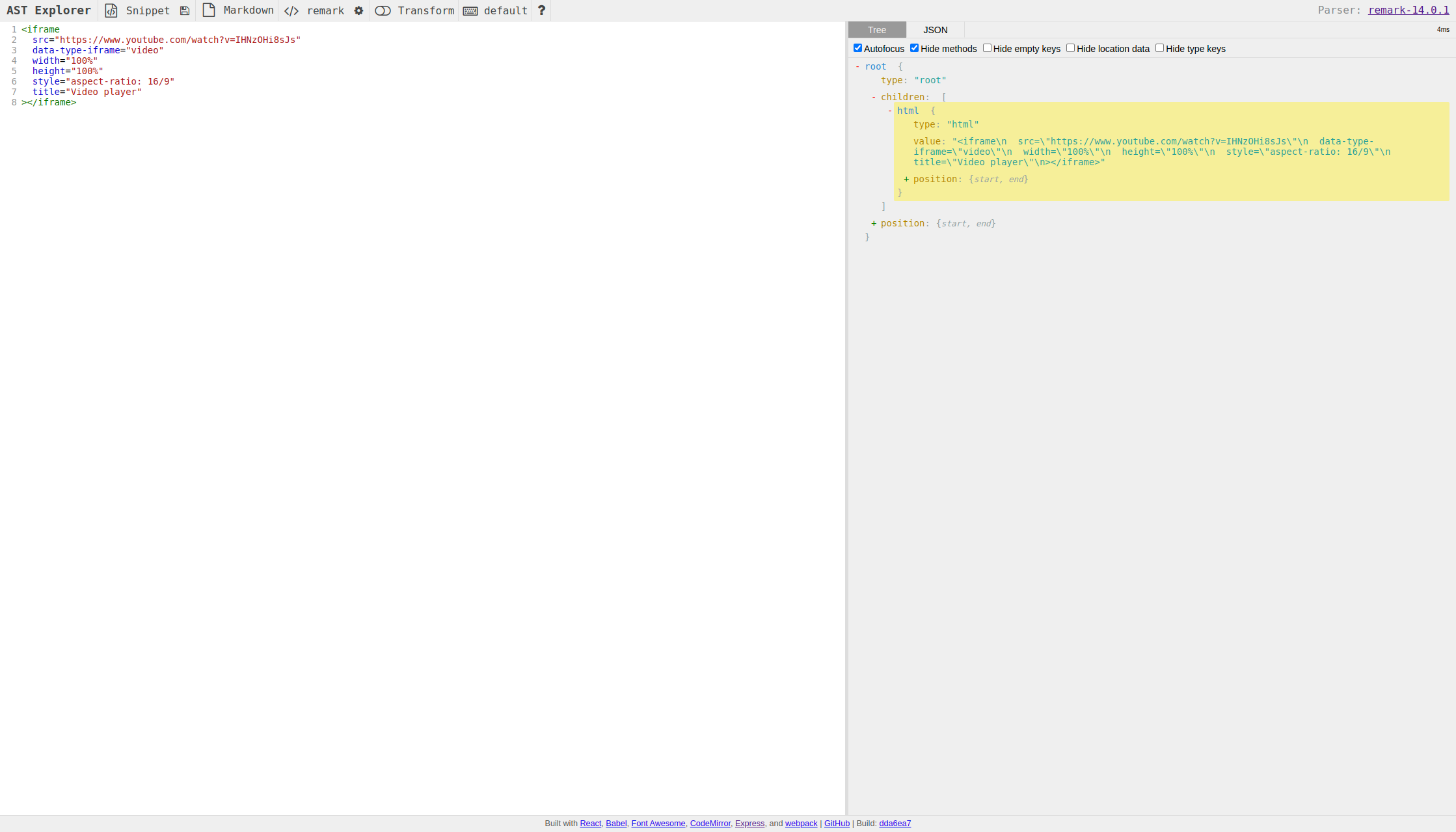
      <iframe
      src="https://www.youtube.com/watch?v=IHNzOHi8sJs"
      data-type-iframe="video"
      width="100%"
      height="100%"
      style="aspect-ratio: 16/9"
      title="Video player"
      ></iframe>
    • Yields:

      {
      type: 'html',
      value: "<iframe\n src=\"https://www.youtube.com/watch?v=IHNzOHi8sJs\"\n data-type-iframe=\"video\"\n width=\"100%\"\n height=\"100%\"\n style=\"aspect-ratio: 16/9\"\n title=\"Video player\"\n></iframe>",
      position: { start: [Object], end: [Object] }
      }
    • Demo:

      html-node-demo

Construct the new html node

  • A function that converts the object properties to HTML attributes:

    function convertObjectToHTMLAttributes(obj) {
    return Object.entries(obj)
    .map(([key, val]) => {
    if (typeof val === 'boolean' && val === true) {
    return key;
    }
    return `${key}="${val}"`;
    })
    .join(' ');
    }

    Kinda messy, but it works. The boolean value with true will be converted to a key without value, e.g.: crossorigin instead of crossorigin="true". Read more about HTML boolean attributes.

  • Construct the new <iframe> HTML node:

    const newAttrs = convertObjectToHTMLAttributes(iframeAttrs);

    // NOTE: src should be the first attribute so it won't be overwritten
    const newValue = `<iframe src="${url}" ${newAttrs}></iframe>`;
    info

    Refer to this StackOverflow answer, the later src attribute is ignored if the user unintentionally put it in the middle of the <iframe> tag.

Modify the AST tree

Each link or text node always a child of a paragraph node. Because the html node is not a child of a paragraph node, we can swap the paragraph node with the html node if the html node is the only child of the paragraph parent node. Otherwise, we will just replace the link or text node with the html and leave the paragraph node as it is.

// We swap parent (usually "paragraph" node) with the new value if there
// is only one child as there is no others "text" node in the
// "paragraph" node
if (parent.children.length === 1) {
parent.type = 'html';
parent.value = newValue;
parent.children = [];
return;
}

// We only swap the 'link' node with the new value if node is not the
// only child
node.type = 'html';
node.value = newValue;
node.children = [];
delete node.url;
delete node.title;

Import the plugin

Now we have the plugin, we can import it in the docusaurus.config.js file.

note

Because we include the plugin in the docs preset, so the plugin will only be used for the docs pages.

docusaurus.config.js
const transformURL = require('./src/remark/transformURL');

const config = {
presets: [
[
'classic',
{
docs: {
beforeDefaultRemarkPlugins: [
[
transformURL,
{
patterns: ['example.com'],
iframeAttrs: {
width: '500px',
height: '500px',
style: 'aspect-ratio: 1/1;',
title: 'Video player',
frameborder: 0,
allow:
'accelerometer; autoplay; clipboard-write; encrypted-media; gyroscope; picture-in-picture',
allowfullscreen: true,
},
},
],
],
},
},
],
],
};

module.exports = config;

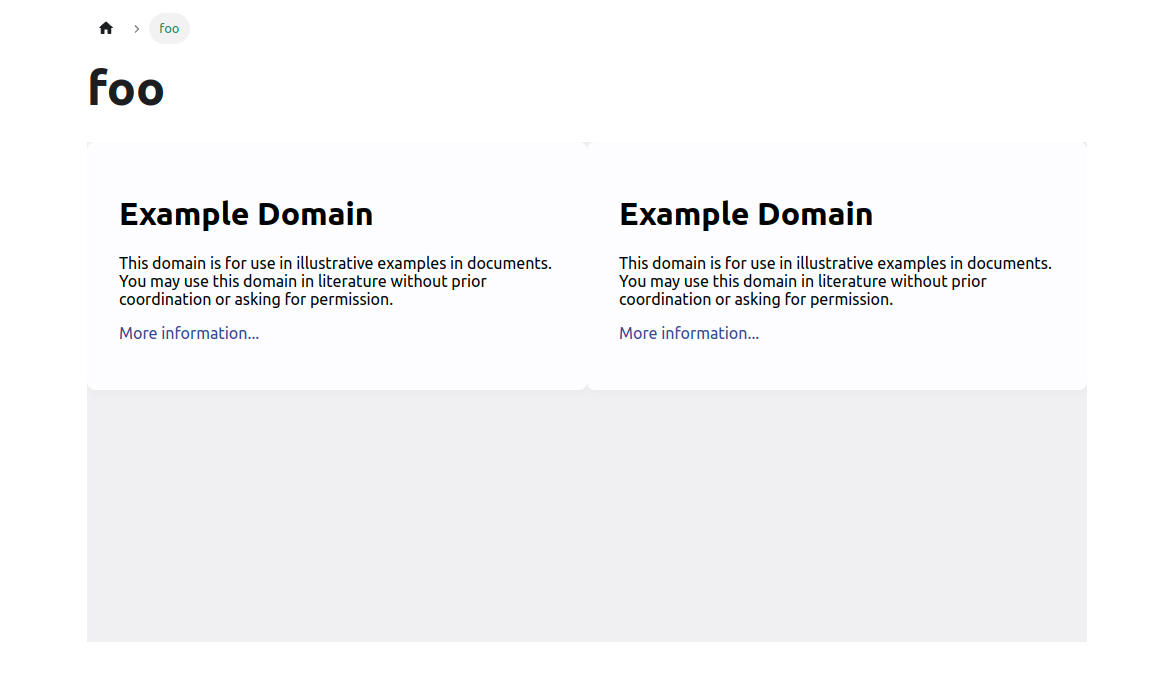
Then with input:

docs/foo.md
https://example.com

[foo](https://example.com)

We will get the output:

<iframe
title="Video player"
src="https://example.com"
width="500px"
height="500px"
frameborder="0"
allow="accelerometer; autoplay; clipboard-write; encrypted-media; gyroscope; picture-in-picture"
allowfullscreen=""
style="aspect-ratio: 1 / 1;"
></iframe>

Demo:

plugin-url-demo

Advanced Usage

Convert URL to react-player component

With the plugin above, we can use it to convert the URL to an <iframe> HTML and then register the <iframe> to Docusaurus's default MDX components.

Install dependencies

react-player is a React component for playing a variety of URLs, including file paths, YouTube, Facebook, Twitch, SoundCloud, Streamable, Vimeo, Wistia, Mixcloud, DailyMotion and Kaltura.

pnpm add react-player

Define the plugin

src/remark/transformVideo.js
/* eslint-disable @typescript-eslint/no-var-requires */
const transformURL = require('./transformURL');

// Ref: https://cookpete.com/react-player/
const DEFAULT_PATTERN = [
'\\.mp4$',
'\\.webm$',
'\\.ogv$',
'\\.mp3$',
'\\.m3u8$',
'\\.mpd$',
'\\.mov$',
'soundcloud.com',
'youtube.com',
'facebook.com',
'vimeo.com',
'twitter.tv',
'streamable.com',
'wistia.com',
'dailymotion.com',
'mixcloud.com',
'vidyard.com',
'kaltura.com',
];

function plugin(options) {
return async (tree) => {
const transformer = transformURL({
patterns: [...DEFAULT_PATTERN, ...(options?.patterns || [])],
iframeAttrs: {
// NOTE: Set data-type-iframe to 'video' to be able to differentiate
// between video and normal iframe
'data-type-iframe': 'video',
width: '100%',
height: '100%',
style: 'aspect-ratio: 16/9;',
title: 'Video player',
frameborder: 0,
allow:
'accelerometer; autoplay; clipboard-write; encrypted-media; gyroscope; picture-in-picture',
allowfullscreen: true,
...options?.iframeAttrs,
},
});

await transformer(tree);
};
}

module.exports = plugin;

This plugin uses remark-url-to-iframe plugin to transform URL (with patterns) links (e.g.: [hyperlink](some-url)) or URL plain texts to iframe elements.

This plugin passes some default options to remark-url-to-iframe plugin, you can override them with your own options.

note

We set data-type-iframe to 'video' to be able to differentiate between video and normal iframe.

Register the plugin

docusaurus.config.js
const transformVideo = require('./src/remark/transformVideo');

const config = {
presets: [
[
'classic',
{
docs: {
beforeDefaultRemarkPlugins: [
[transformVideo, { patterns: ['youtube.com'] }],
],
},
},
],
],
};

module.exports = config;

Then we can map the URL to the <iframe> HTML with the attribute data-type-iframe="video.

Create the <VideoPlayer /> component

src/components/elements/VideoPlayer.tsx
import React from 'react';
import ReactPlayer from 'react-player';
import type { ReactPlayerProps } from 'react-player';

const VideoPlayer = ({
src,
...props
}: {
src: string;
} & ReactPlayerProps) => {
return <ReactPlayer controls url={src} {...props} />;
};

export { VideoPlayer };

Map the <iframe> HTML to react-player component

src/theme/MDXComponents.tsx
// Import the original mapper
import MDXComponents from '@theme-original/MDXComponents';
import React from 'react';
import { VideoPlayer } from '@site/src/components/elements/VideoPlayer';

export default {
// Re-use the default mapping
...MDXComponents,
// Map the "iframe" tag to our <VideoPlayer /> component!
// `VideoPlayer` will receive all props that were passed to `iframe` in MDX
iframe: (props) => {
if (props['data-type-iframe'] === 'video') {
return <VideoPlayer {...props} />;
}
return <iframe title={props.title} {...props}></iframe>;
},
};

At this file we import the original mapper from @theme-original/MDXComponents and then we re-export it with our custom mapping. Note that we only map the <iframe> HTML with the attribute data-type-iframe="video to our <VideoPlayer />.

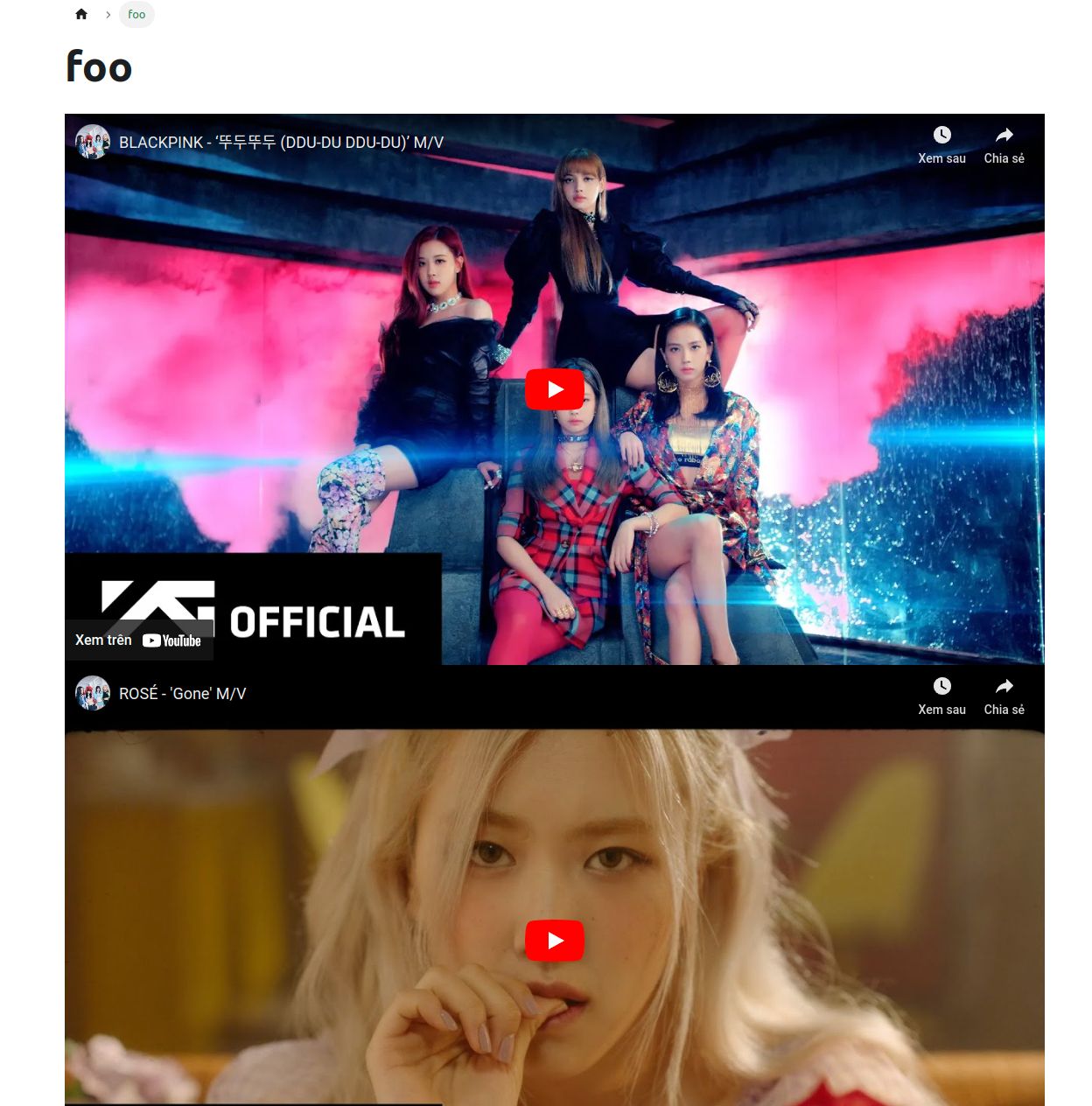
Demo

plugin-video-demo

Manually parse Markdown string with @mdx-js/mdx

We can also manually parse the Markdown string (from the server) with @mdx-js/mdx and then transform the URL to the react-player component.

Manually parsed Markdown content with evaluate function:

  • This requires @mdx-js/mdx, @mdx-js/react and rehype-raw packages:

    pnpm add @mdx-js/mdx @mdx-js/react@1.6.22 rehype-raw

    Note: Currently, Docusaurus v2 is currently working on migrating to@mdx-js/react v2. Before that, we need to install @mdx-js/react@1.6.22 to make it works.

  • @mdx-js/mdx is a unified pipeline — wrapped so that most folks don’t need to know about unified: core.js#L65. The processor goes through these steps:

    1. Parse MDX (serialized markdown with embedded JSX, ESM, and expressions) to mdast (markdown syntax tree).
    2. Transform through remark (markdown ecosystem).
    3. Transform mdast to hast (HTML syntax tree).
    4. Transform through rehype (HTML ecosystem).
    5. Transform hast to esast (JS syntax tree).
    6. Do the work needed to get a component.
    7. Transform through recma (JS ecosystem).
    8. Serialize esast as JavaScript.
  • Because iframe is parsed as raw nodes when parsing the context to HTML syntax tree, we need to add rehype-raw plugin to handle the raw nodes.

  • We also have to "pass through" remark-mdx (this plugin is run first) nodes so rehype-raw don't have to handle them.

  • We pass registered MDX components (in file MDXComponents we "swizzle" before) to evaluate function by setting the useMDXComponents option.

    Note: We have to manually get registered MDX components using useMDXComponents hook first.

    Note: Remember to wrap ReleaseBody component with MDXContent from @theme/MDXContent to provide the context of MDX components to the ReleaseBody component.

  • Warning: Because we can't ensure the content is parsed correctly, we need to wrap the ReleaseBody component with ErrorBoundary component to be able to catch the error and display the error message.

// src/components/elements/ReleaseCard.tsx
import { evaluate, nodeTypes } from '@mdx-js/mdx';
import { useMDXComponents } from '@mdx-js/react';
import transformVideo from '@site/src/remark/transformVideo';
import Admonition from '@theme/Admonition';
import MDXContent from '@theme/MDXContent';
import React, { useEffect, useState } from 'react';
import * as runtime from 'react/jsx-runtime';
import rehypeRaw from 'rehype-raw';

const ReleaseBody = ({ body }) => {
const components = useMDXComponents();

const [parsed, setParsed] = useState<React.ReactNode>();

useEffect(() => {
const evaluateBody = async () => {
const { default: BodyContent } = await evaluate(body, {
...runtime,
remarkPlugins: [transformVideo],
// Ref: https://github.com/atomiks/rehype-pretty-code/issues/6#issuecomment-1006220771
rehypePlugins: [[rehypeRaw, { passThrough: nodeTypes }]],
useMDXComponents: () => components,
// eslint-disable-next-line @typescript-eslint/no-explicit-any
} as any);

setParsed(<BodyContent />);
};

evaluateBody();
}, [body, components]);

return <>{parsed}</>;
};

const ReleaseCard = ({ release, latest = false }) => {
return (
{ /* ... */}
<ErrorBoundary
fallback={({ error }) => (
<>
<Admonition type="danger" title="Error">
<p>This component crashed because of error: {error.message}.</p>
</Admonition>
<pre className="whitespace-pre-wrap">
<code>{release.body}</code>
</pre>
</>
)}
>
<MDXContent>
<ReleaseBody body={release.body} />
</MDXContent>
</ErrorBoundary>
);
};

export { ReleaseCard };

Troubleshooting

How to use remark plugins that are ES modules?

Most of the remark plugins rely on the unist-util-visit package to traverse the tree. However, unist-util-visit has migrated to the ES module in version 3.0.0 and most of the built-in and community plugins have migrated too. Of course, you can use the old version of unist-util-visit but it's not recommended.

Here is a workaround to use ES module remark-emoji plugins:

src/remark/transformEmoji.js
function plugin(options) {
async function load() {
const { default: emojiPlugin } = await import('remark-emoji');

return emojiPlugin(options);
}

return async (tree) => {
const transformer = await load();
transformer(tree);
};
}

module.exports = plugin;
  • First, we need to import the plugin dynamically using the import() function. Then execute the plugin with the options we passed to the plugin, this will return a transformer function.
  • Then you MUST return an async function that accepts the tree and execute the transformer function with the tree as the argument.